Write Off Balance
New for 2.3: Writing Off Matter Balance and Client Balance (Multiple)
Matter Balance:
- Key in the Client/Matter.
- Select Tool>Write Off Balance or you can enter $0 on the Toolbar. See Figures 1.0 and 2.0
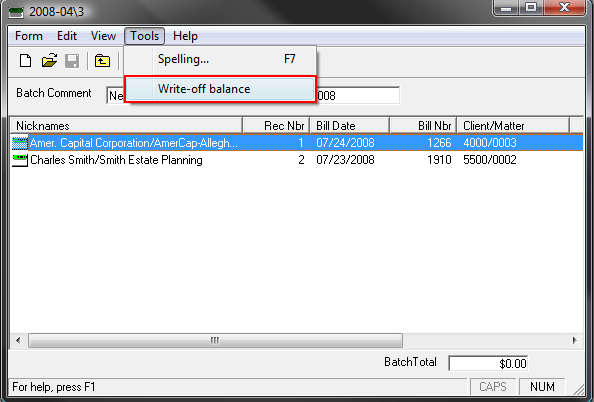 Figure 1.0
 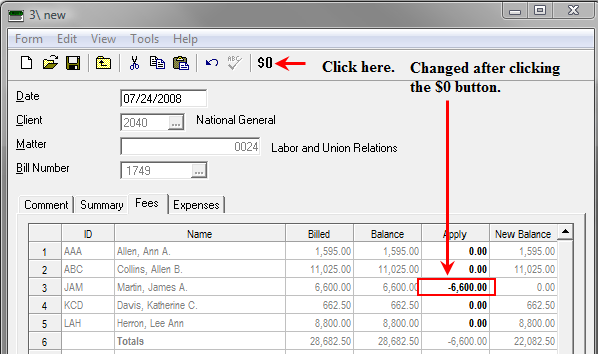 Figure 2.0
Note: You must specify a Matter and a Client.
Client Balance
To write off a Client Balance, perform the following:
- Select Transactions > Credit Memos
- Select (highlight) the Credit Memo.
- Select Tools > Write off multiple bills.
- The Bill Finder window will appear. Select Get Bills button.
- Select Bill(s) listed and click the Write Off button. Selecting all of the bills will write off the entire matter. See Figures 3.0 and 4.0
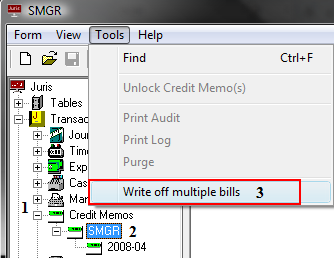 Figure 3.0
 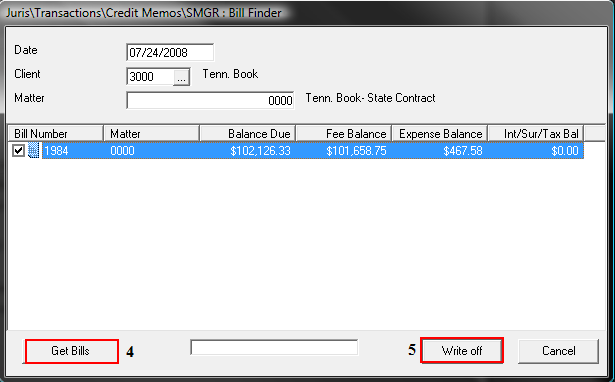 Figure 4.0
The Write Off Balance option may be used as a shortcut to entering a negative entry to write off particular amounts on a bill. The Write Off balance option will only become enabled if the user has placed focus on a balance item on either the Summary, Fees or Expenses tab This function may be accessed in any of the following ways:
- Clicking the Write Off Balance icon.
- Selecting Tools > Write Off Balance.
- Using the keystroke Ctrl + W.
Examples
Example: The user must have the focus placed on any item in the BALANCE column
of the Summary, Fees or Expenses tab for the Write Of Balance option to
become enabled.
The balance columns of the Fees, Summary and Expenses tabs are shown
highlighted. Clicking
on any field in any of these columns will place the focus in that location,
enabling the Write Off Balance option. See Figure 5.0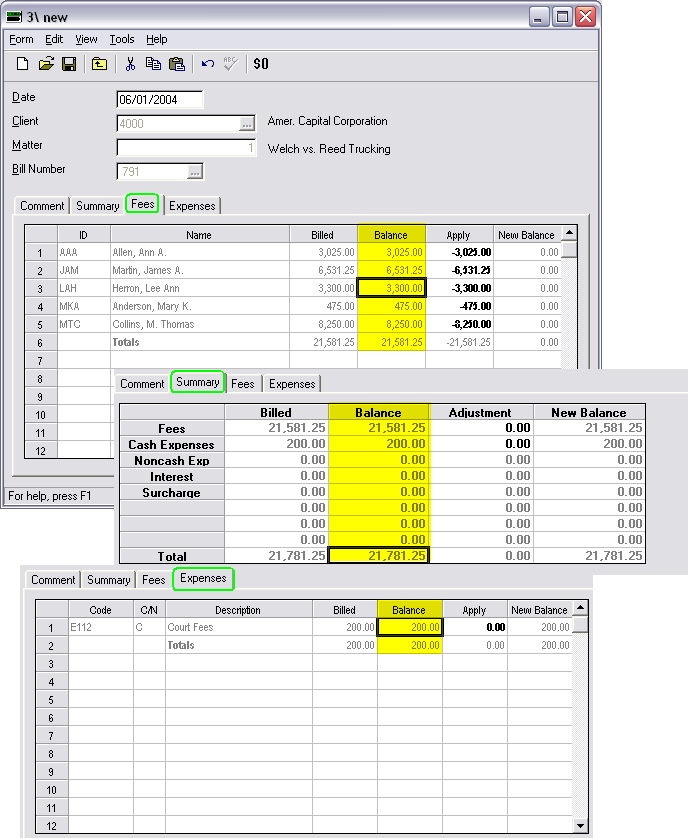 Figure 5.0
Example: In this example, the focus is placed on the Adjustment column (which
is highlighted in the example shown for clarification). Since
the item selected is not a Balance item, the Write Off button is disabled. See Figure 6.0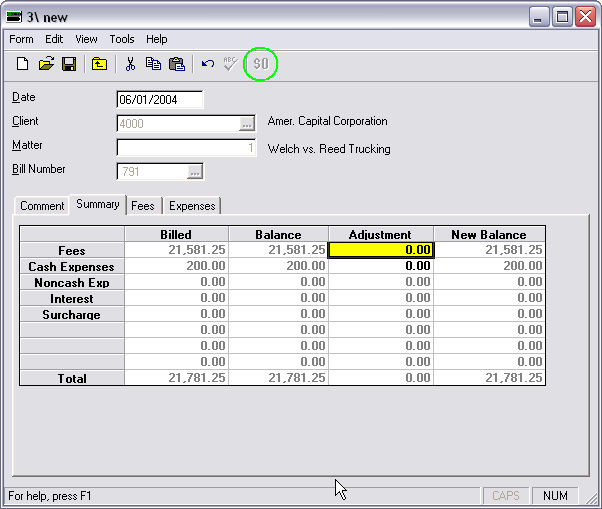 Figure 6.0
Example: Once the focus is placed on a value in the Balance column, the Write
Off button becomes enabled. Clicking the Write Off Balance button will automatically insert a negative
adjustment amount for the selected value, as shown here. If the value selected is the Total value, then all appropriate negative
adjustments will be filled in automatically for the associated detailed
items. See Figure 7.0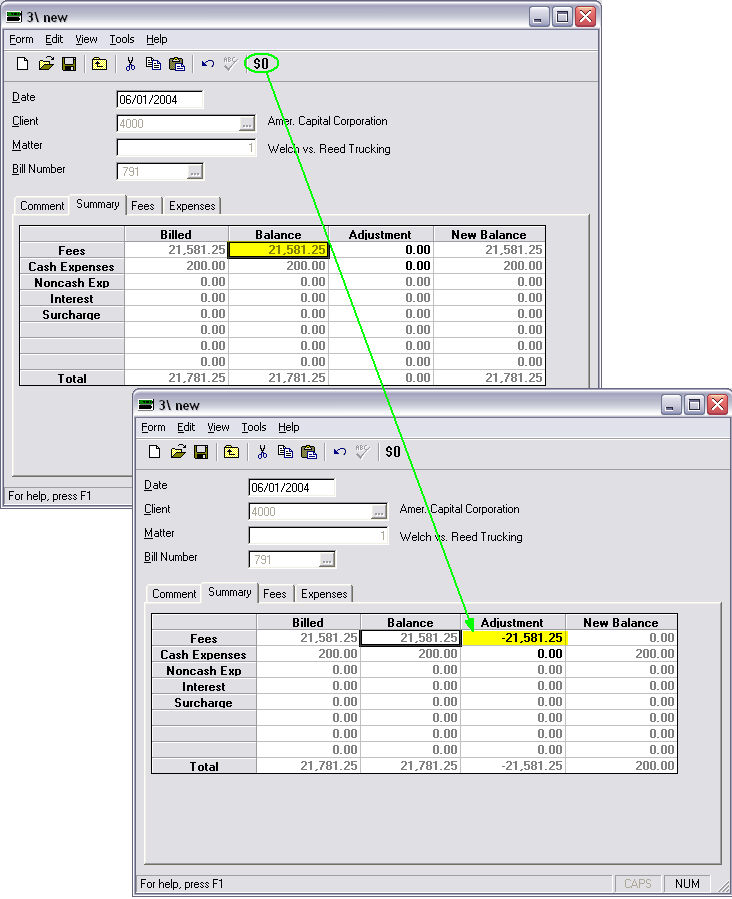 Figure 7.0
 Related Topics