Find Task Codes
The Finder in Juris may be used to search throughout Juris, but is pre-populated with the appropriate defaults for searching only in Task Codes, when the steps below are used.
-
Select Tables > Task Codes.
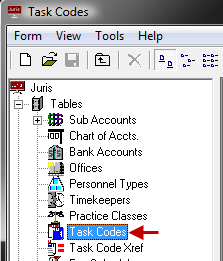
-
Open the Finder form by either of the following options:
- Select Tools > Find from the menu.
- Use the keystroke shortcut Ctrl + F.
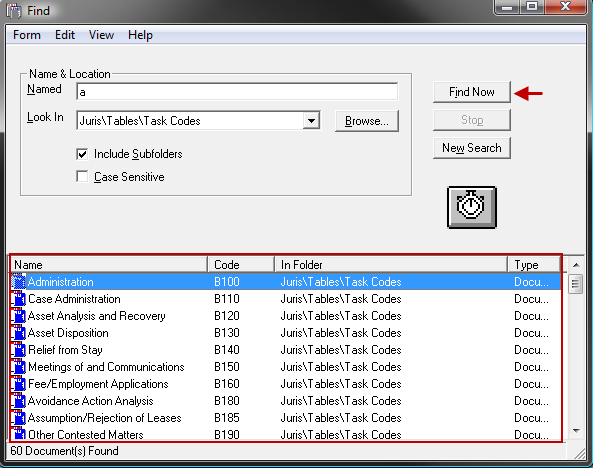
Notice that the "Look In" field is pre-populated with the path "Juris\Tables\Task Codes" and the "Search Subfolders" option is checked.
- Optionally, click on the Case Sensitive check box to select it, in order to narrow the search to only return results when the case used in the search is to be matched.
-
In the Named text box, type all or a portion of the name or description.
NOTE: Details of the Task Code Xref (cross reference) spreadsheet are not be included in the search.
-
Click the Find Now button, or press the Enter key to begin the search.
The results of the search are displayed at the bottom of the form.
- Optionally, double-click on any item to open it.
- Optionally, select an item and choose Form > Delete to allow deletion of that item as long as it is not in active use.
- Optionally, click the New Search button to clear the current search criteria and results so a new search may be performed, if desired.