Run a Conflict inquiry
To run a Conflict inquiry report:
-
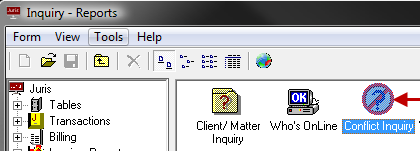
Open Inquiry-Reports > Conflict Inquiry.
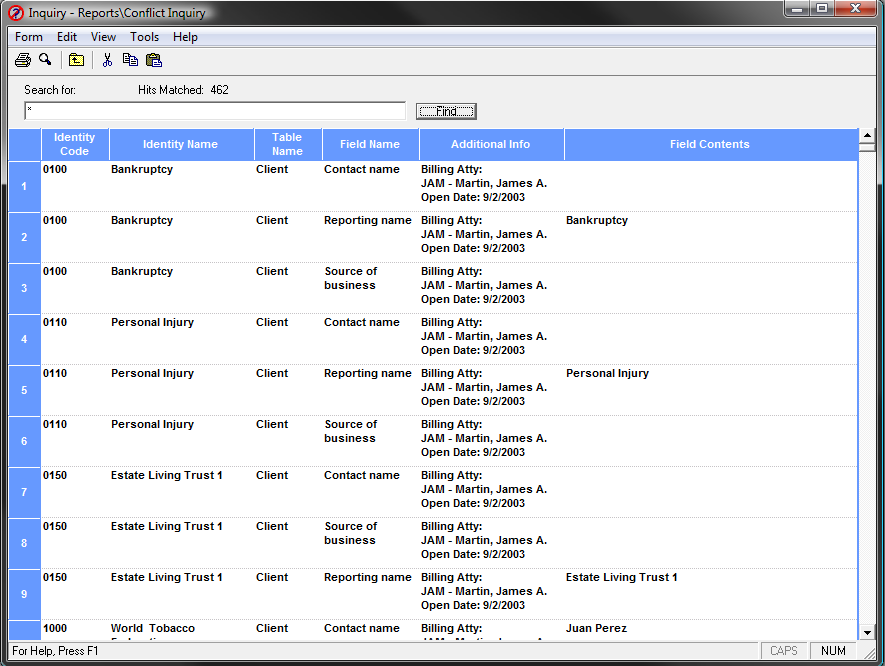
The inquiry window opens.
-
In the Search for text box, type the search criteria in the in any of the following ways:
- BASIC SEARCH: Enter a name or phrase to search for all items
- STRING SEARCH: A name or phrase enclosed in double-quotations “” will search for that exact name or phrase.
- WILDCARD SEARCH: Use the ? as a single-character wildcard; use the * as a multi-character wildcard.
- SPECIAL CHARACTERS: Symbols (such as #, &, @) and punctuation may be searched.
- SINGLE CHARACTERS: Single characters may be searched.
- Any of the above search types may be combined and nested for more powerful searches. Details are in the Conflict Advanced Topics section.
- Once the search criteria has been entered, click the Find button to begin the search. The results of the search will be displayed in the spreadsheet below.
- Click the Print Preview button to view the conflict search results report.
- Click the Print icon from the search window to print the search results, or from the Print Preview click the icon to Print the conflict search results report.
-
From the print preview, click the E-mail icon to e-mail the conflict search results report to another person.
Be sure to take advantage of Outlooks voting feature under View > Options, which can be used to require the recipient(s) to accept or reject the report.
