Credit Memos Quick Lesson
To create a Credit Memo, perform the following:
- Open Juris>Transactions>Credit Memos. See Figure 1.0
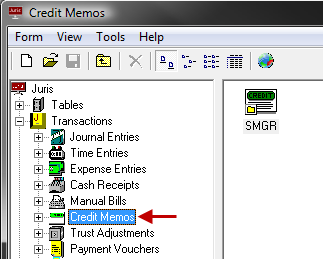 Figure 1.0
 - Open a new Credit Memo Batch in any of the following ways:
- Click the New icon.
- Select Form > New from the toolbar.
- Use the keystroke shortcut Ctrl + N.
- Accept the default date or enter a comment/date as in the Batch Comment field.
- Click the New icon in the batch window. See Figure 2.0
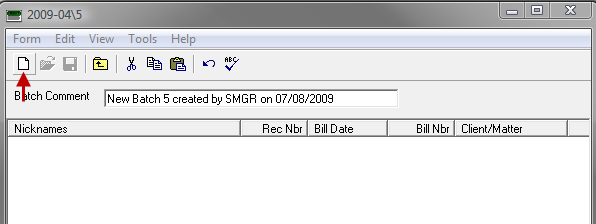 Figure 2.0
 - Type in a Client and Matter, or select one using the Client Matter lookup by clicking the ellipses button.
- On the Comment tab - enter a Comment (required) and Narrative (optional).
- The adjustment amount may be entered on the Summary tab, the Fees tab
or the Expenses tab as appropriate. Enter
a negative amount to reduce the amount of the bill or enter a positive
amount to increase the amount of the bill. Use
the Write Off Balance option, if desired. See Figure 3.0
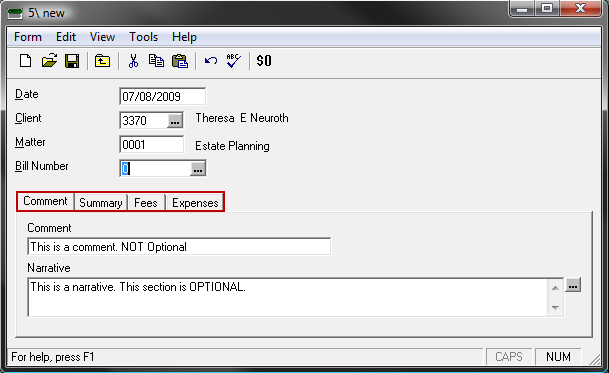 Figure 3.0
Tip: The Summary, Fees and Expenses tab allow the adjustment to be applied in a particular manner. For example, if a $500.00 adjustment is applied to fees on the Summary tab, the system will allocate that amount to all timekeepers on the bill. If the user elects to go to the Fees tab, they may apply that $500.00 adjustment to a particular timekeeper, if desired. Both positive and negative adjustments may be made. For example, a negative adjustment may be made on one timekeeper and a positive adjustment in the same amount made to another timekeeper in order to move the A/R from one timekeeper to another.
- Save the item in any of the following ways:
- Click the Save icon.
- Select Form > Save from the toolbar.
- Use the keystroke shortcut Ctrl + S.
Note: Posting of Credit Memos is automatic upon saving.
 Related Topics